
Setting up your team
Invite negotiators, admins, and managers into one workspace — with clear roles, seat awareness, and a smooth first login for everyone you add.
What this does
Admins, branch managers, and managers open Team & users under Settings, review who already has access, and send email invitations. New users set a password on first arrival; existing XchangeHero accounts are attached to the workspace instantly. Everyone works under /{your-workspace}. On the Agency plan you can also assign negotiators to an office (branch) from each member row — see Branches.
Open Team & users
Path: /{your-workspace}/settings/team — or start from the Settings hub and choose the Team & users card (same destination).
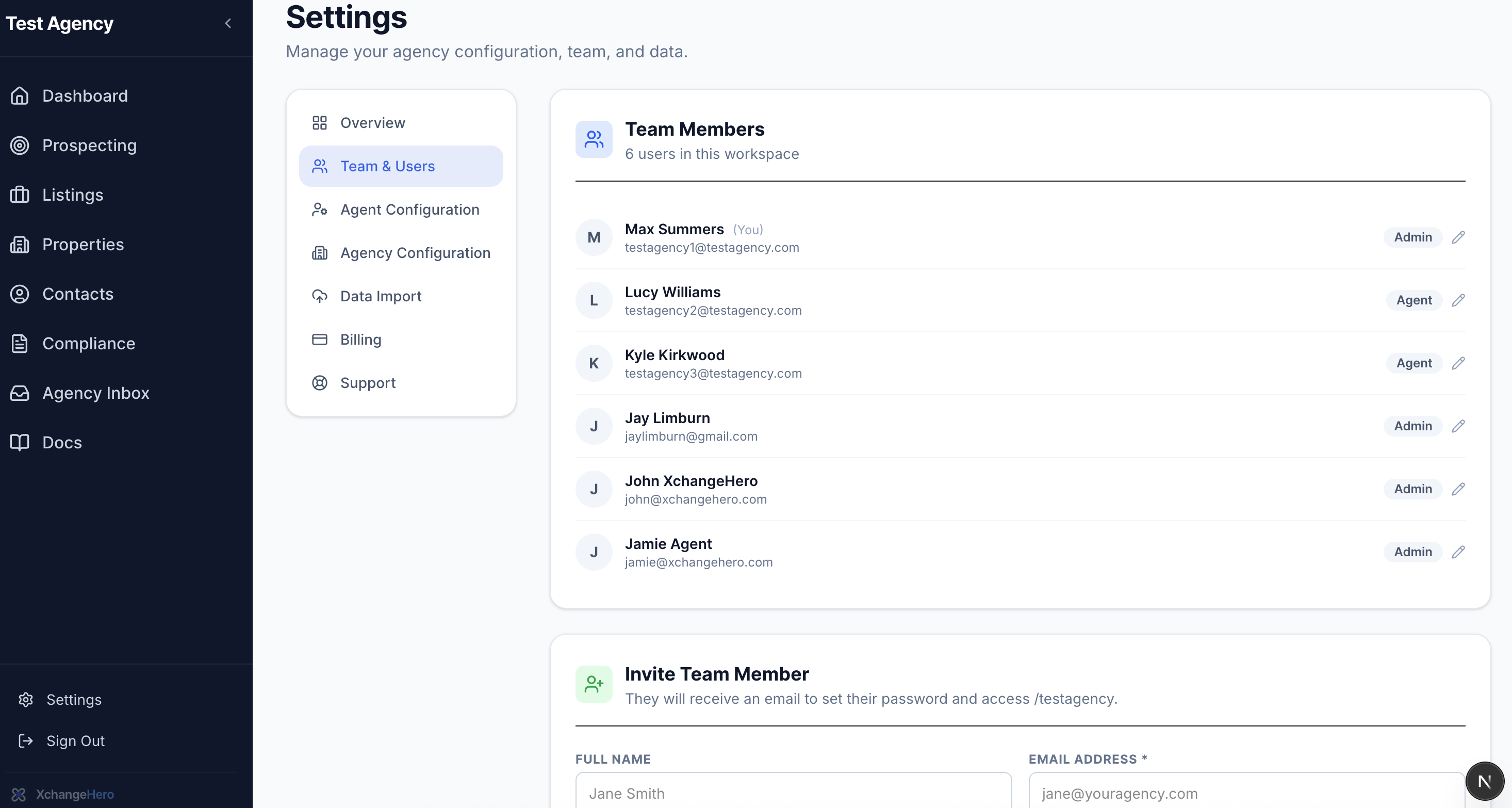
Settings landing with the Team & users tile visible — consistent entry point for admins.
Who can manage invites
Admin, Branch Manager, and manager roles see the invite form. Agents can still open their own row to update display name or change password, but they cannot add seats.
At least one admin must remain in the workspace — the product prevents you from demoting or removing the last admin accidentally.
Current team members
The top panel lists every workspace member with email, name, and role. Expand a row to edit details or, if you have permission, remove someone who has left the business.
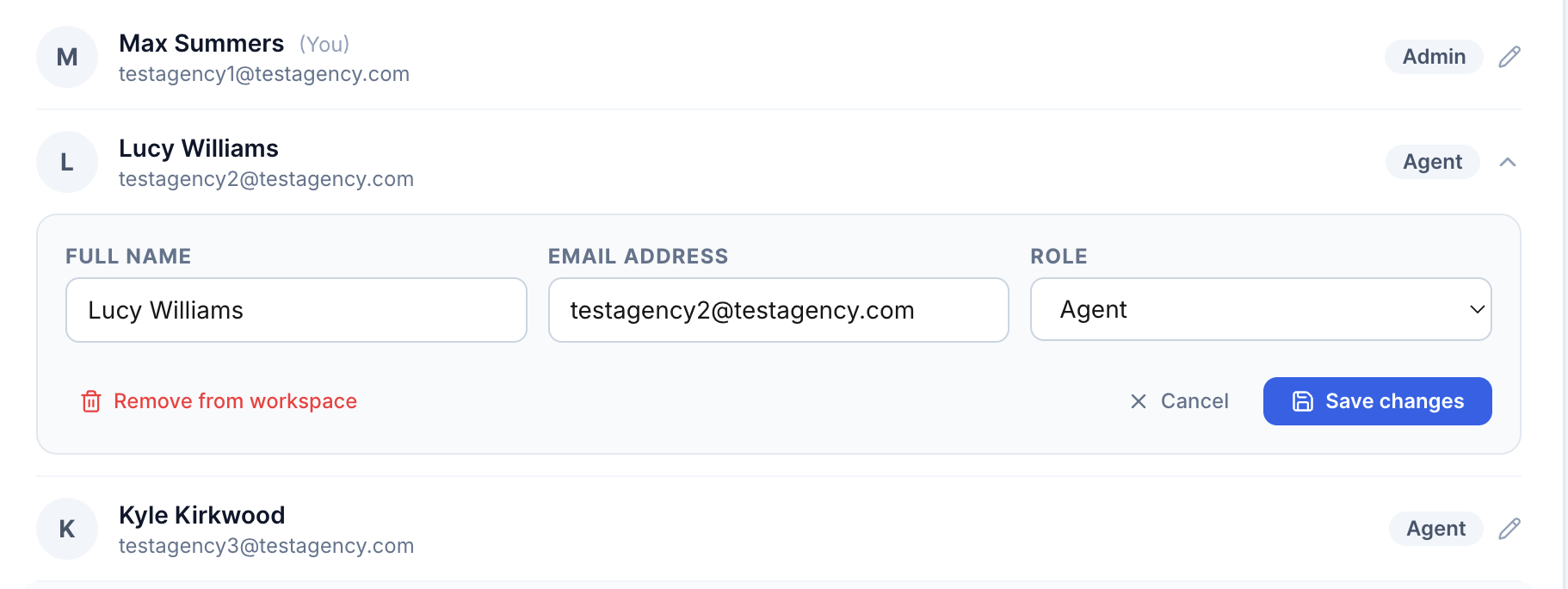
Member table: multiple rows, role badges, and optional expanded edit state.
Inviting someone new
The Invite team member card collects email, full name, and starting role (defaults to agent). Submitting sends either a password-setup email for brand-new users or attaches an existing account to this agency — you will see which outcome happened in the green confirmation line.
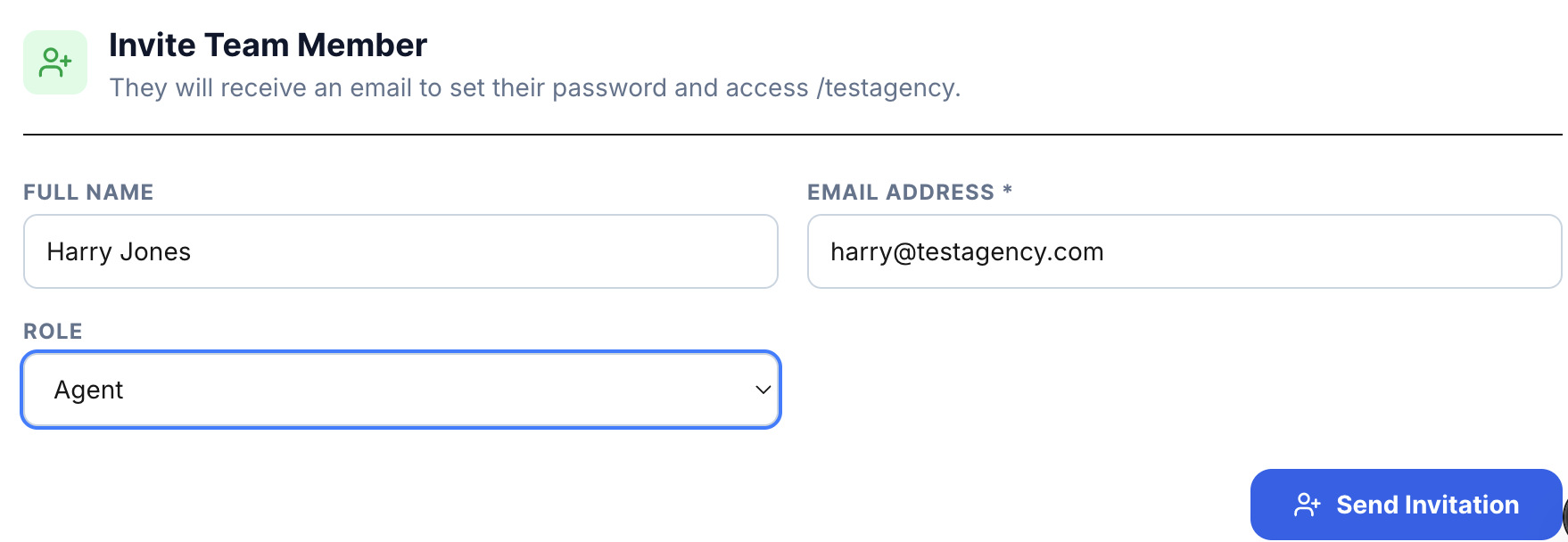
Invite card: title, helper text showing workspace URL, and role dropdown on agent.
Seat limits
If your plan is at capacity, the invite form surfaces a seat-limit prompt instead of failing silently. Upgrade or remove inactive members before retrying.
Roles at a glance
| Role | Typical use |
|---|---|
| Admin | Full settings, billing, imports, branches (Agency plan), team management; cannot remove last admin. |
| Branch Manager | Like a manager, plus Branches settings on Agency plan; no billing, import, or agency config. |
| Manager | Invite users, edit member rows, day-to-day ops; locked out of billing, import, agency config, and branch setup. |
| Agent | Deals, contacts, inbox — everyday fee-earner access. |
Exact permission matrices can evolve — when in doubt, start colleagues as agent and promote to manager or branch manager only where needed. See Roles & permissions for the full matrix.
Tip
Invite your data champion first — they can run the import, then bring negotiators in once sample listings look correct.