
Billing & plans
Choose the right plan for your agency, understand exactly what each tier unlocks, and manage your subscription — all from one place.
Where to find this
Go to Settings → Billing. This page is only accessible to workspace admins. From here you can see your current plan, upgrade or downgrade, add extra seats, and view past invoices.
Your free trial
Every new workspace starts on a 14-day free trial. During the trial you have access to all features — including Growth-tier dashboards — with no payment required. Your trial will not automatically convert to a paid subscription. When it ends you choose a plan if you want to continue.
You can subscribe at any time during the trial by going to Settings → Billing and choosing a plan. If you subscribe before the trial ends, billing starts immediately from that date.
Plans at a glance
All plans are billed monthly. No annual lock-ins, cancel any time.
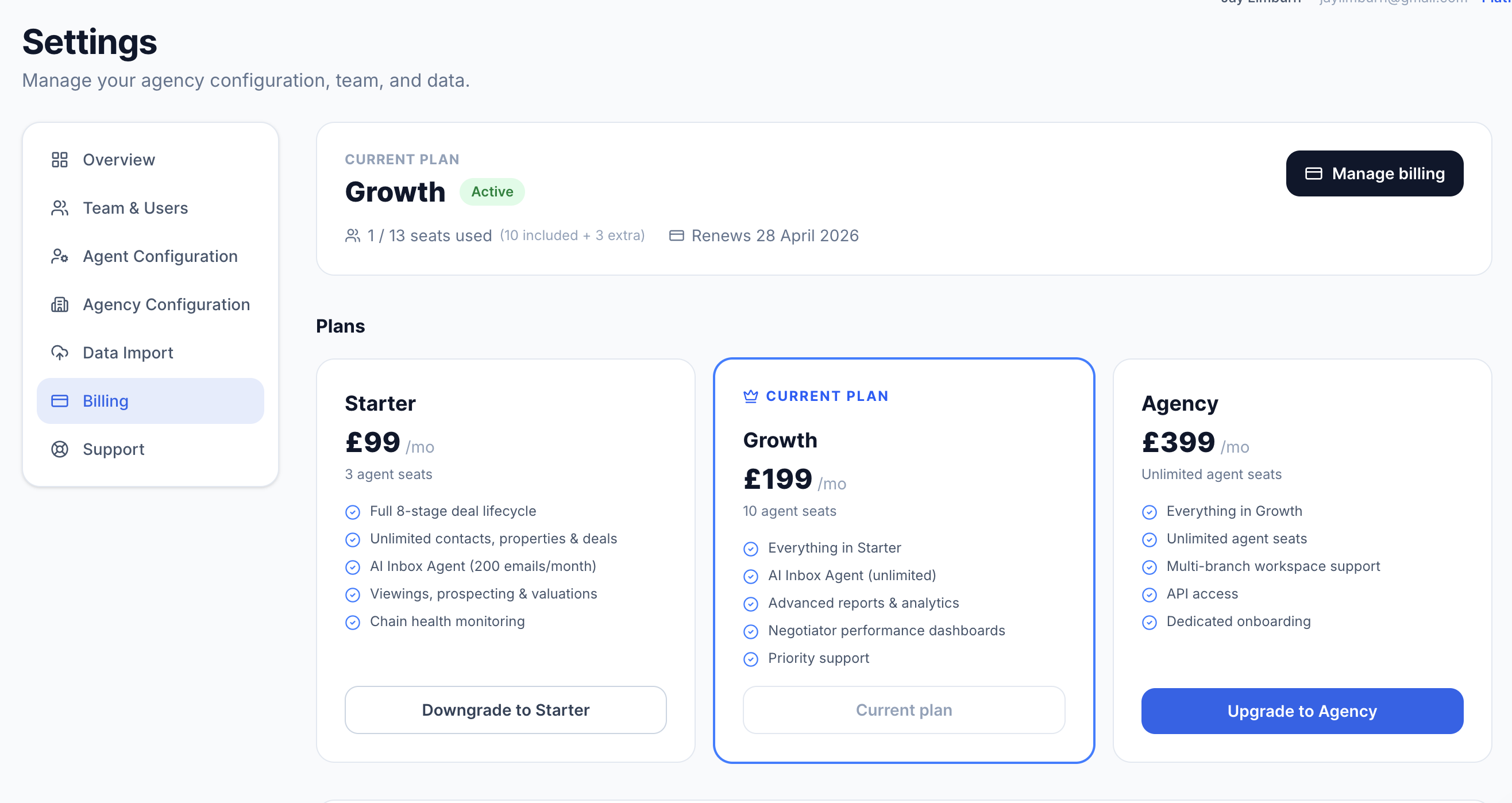
Settings → Billing. Your current plan is highlighted. Click any other plan card to upgrade or downgrade.
Feature availability by plan
Features marked with a plan badge inside the app are enforced in real time — the UI will show an upgrade prompt if your current plan does not include that feature.
| Feature | Starter £99/mo | Growth £199/mo | Agency £399/mo |
|---|---|---|---|
| Core platform | |||
| Full 8-stage deal lifecycle | |||
| Unlimited contacts, properties & deals | |||
| Prospecting pipeline & valuations | |||
| Viewings management | |||
| Buyer matching & applicant profiles | |||
| Chain health monitoring & scoring | |||
| Compliance / audit log | |||
| Data import (Jupix, Alto, Reapit, Street & more) | |||
| AI Inbox Agent | |||
| Inbox email parsing & suggested actions | |||
| Monthly email processing limit | 200 emails | Unlimited | Unlimited |
| Offer & viewing detection from emails | |||
| Artifact verification via inbox AI | |||
| Dashboards & performance | |||
| Overview dashboard | |||
| Weekly view dashboard | |||
| Listing Health dashboard | |||
| Agent Performance dashboardGrowth+ only | |||
| Agency Performance dashboardGrowth+ only | |||
| Per-agent 6-month history (on Agent Config card)Growth+ only | |||
| Dashboard branch filter (scope Overview, Weekly, Listing Health & performance tabs to one office)Agency plan; 2+ branches; see Branches guide | |||
| Team & workspace | |||
| Included seats | 3 seats | 10 seats | Unlimited |
| Extra seats (purchasable add-on)Agency plan is already unlimited | |||
| Role-based access (Admin / Branch Manager / Manager / Agent) | |||
| Agent configuration & territory patches | |||
| Multi-branch workspace (offices, member assignment, Branch Manager role)Agency plan only | |||
| Integrations & API | |||
| Agency Inbox email forwarding | |||
| REST API accessAgency plan only | |||
| Support | |||
| Email support | |||
| Priority support | |||
| Onboarding call | |||
| Dedicated onboarding & SLA-backed support | |||
Growth-only features in detail
The following features are only available on the Growth or Agency plan. On Starter, you will see an upgrade prompt in place of the feature.
Agent Performance dashboard/{workspace}/performance
Team leaderboard with Instructions, Viewings, Offers, Completions, and Valuations vs monthly targets. Includes active now, average DOM, reductions, and val→instruction rate.
Agency Performance dashboard/{workspace}/agency-performance
Agency-wide analytics: revenue pipeline by stage, communication volume trends, and offer analytics (total offers, avg offer ratio, avg days to first offer).
Per-agent 6-month historySettings → Agent Configuration
Expandable chart on each agent's configuration card showing monthly Instructions, Viewings, Offers/SSTC+, Completions, and Valuations against their monthly targets for the last 6 months.
Upgrading your plan
Go to Settings → Billing and click the plan you want to move to. You will be taken to a secure Stripe checkout page to confirm payment. Once complete, the new plan is active immediately — you do not need to wait for the next billing cycle.
When you upgrade, any remaining days on your current plan are credited against the new plan cost. You will only be charged the difference for the days remaining in the current month.
Downgrading your plan
You can downgrade to a lower plan from the same Billing page. Click the plan card for the plan you want to move to. The downgrade takes effect at the start of your next billing period — you keep access to your current plan until then.
Before downgrading
Check your seat count. If you are on Growth (10 seats) and want to move to Starter (3 seats), you will need to reduce your team to 3 members first. Remove team members from Settings → Team before changing your plan. Once downgraded, Growth-only features (performance dashboards, agent history) will be replaced by upgrade prompts.
Managing your billing details
Click the Manage billing button at the top of the Billing page to open the Stripe customer portal. From there you can:
All payment processing is handled by Stripe. XchangeHero never stores your card details.
Invoices
Your last 12 invoices are shown at the bottom of the Billing page. Each one shows the date, amount, and status. Click View on any invoice to open it in Stripe — from there you can download it as a PDF or send it to your accounts team.
An invoice is generated automatically at the start of each billing cycle and again whenever you make a mid-cycle change such as adding extra seats or upgrading your plan.
Cancelling your subscription
To cancel, click Manage billing and choose to cancel your subscription in the Stripe portal. Your subscription will continue until the end of the current billing period — you will not be charged again after that. All your data remains in the workspace and is accessible until the period ends.
After cancellation, your workspace moves to a read-only state. You can resubscribe at any time from the Billing page to restore full access.
Your data
Cancelling does not delete your data. Your contacts, listings, deals, and activity history are all retained. If you resubscribe later — even months later — everything will be exactly as you left it.
What happens if a payment fails?
If your card payment fails, you will receive an email notification. Your workspace stays active while Stripe retries the payment — typically three attempts over several days. Your Billing page will show a Payment Failed status during this period.
To resolve it, click Manage billing and update your payment card. Once a successful payment is taken, your subscription returns to active and the failed status clears automatically.